
The laptop is only the starting point. The real productivity story is how the system is docked, displayed, organized, and used throughout the day. In my current consulting setup, a company-issued Lenovo ThinkPad T14 Gen 7-class laptop becomes the compute foundation for a seven-zone workstation designed around Microsoft 365 delivery work, customer context, documentation, scripting, and collaboration.
One of the interesting things about modern consulting work is that the laptop itself is only part of the story. The real productivity multiplier comes from how that laptop is docked, displayed, organized, and used throughout the day. My current company-issued system is a Lenovo ThinkPad T14 Gen 7-class business laptop with 32 GB of RAM, connected through a Lenovo ThinkPad USB4 Smart Dock 5500 to three LG 29-inch ultrawide monitors running at 2560 × 1080. On paper, that sounds like a lot of screen space. In practice, it creates a highly structured seven-workspace environment that fits how I work as a Microsoft 365 consultant.
This is not about having screens for the sake of screens. The value comes from assigning a purpose to each area so work can stay visible, organized, and recoverable during a busy day of meetings, tickets, admin work, and documentation.
The Hardware Configuration
Core system
Company-issued Lenovo ThinkPad T14 Gen 7-class laptop with an Intel Core Ultra 7 365 platform.
Memory
32 GB RAM for heavy multitasking across Teams, Outlook, browsers, admin portals, PowerShell, and documentation.
Docking
Lenovo ThinkPad USB4 Smart Dock 5500 providing the one-cable desk experience.
Visual workspace
Three LG 29-inch ultrawide monitors at 2560 × 1080 each, plus the laptop display as the fourth screen.
The 2×2 Screen Layout
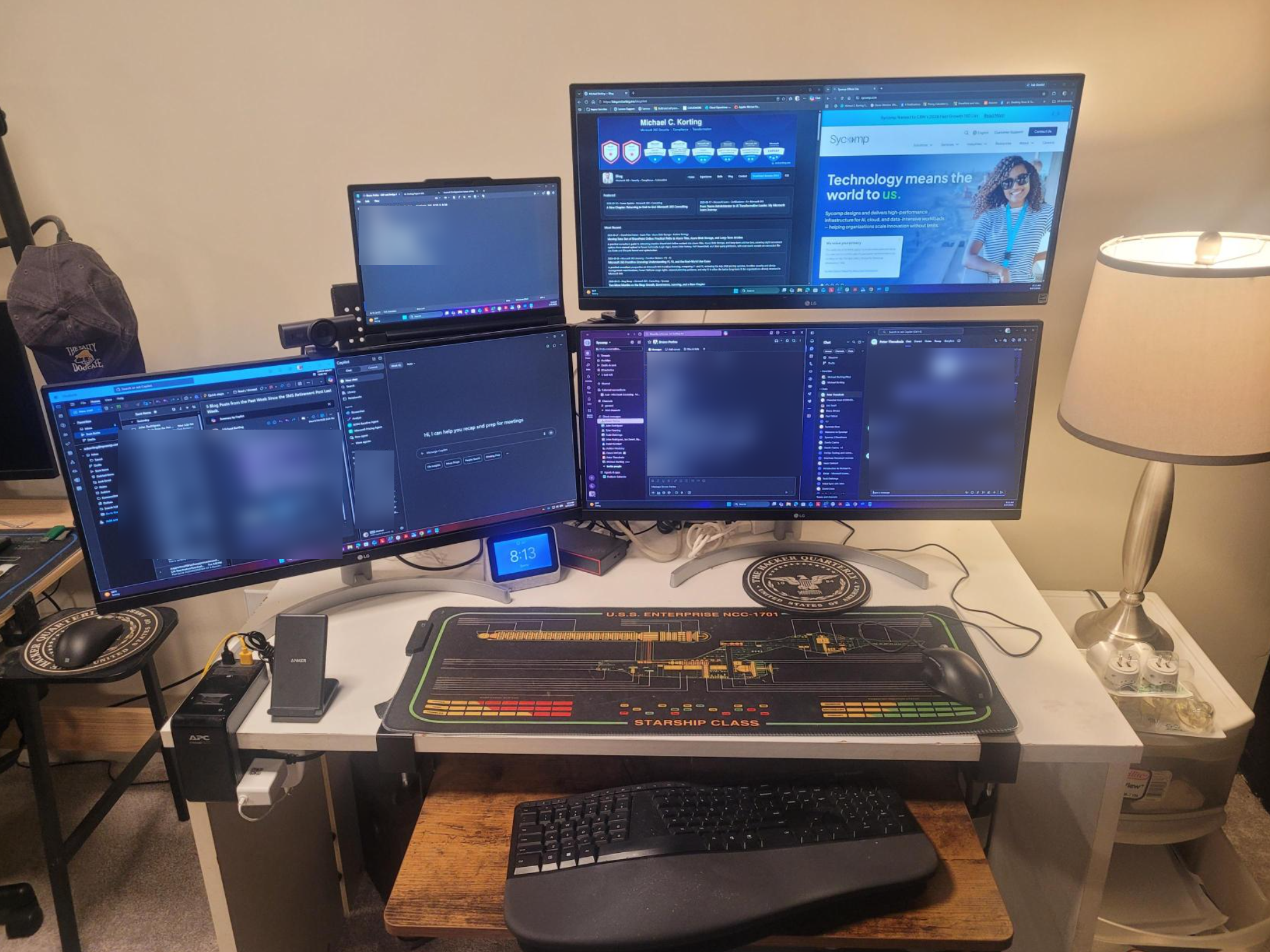
The monitor arrangement is configured as a 2×2 workspace, with the laptop display positioned in the upper-left corner. The three external ultrawides fill out the remaining primary work area. This gives me a physical layout that feels less like a simple multi-monitor setup and more like a command center. The laptop screen becomes a focused single-app area, while each ultrawide monitor becomes two side-by-side workspaces through Windows snapping.
Focused App
Outlook / Calendar
Teams / Notes
M365 / Entra
Workload Portals
PowerShell / Logs
Documentation
The logical Windows display arrangement is a 2×2 grid. Each ultrawide is divided into two snapped work areas, while the laptop display holds one focused application.
How Much Screen Space Is That?
Each 2560 × 1080 ultrawide contains 2,764,800 pixels. Across all three external monitors, the laptop is driving 8,294,400 external-display pixels. That is the same pixel count as a single 3840 × 2160 4K UHD display, but distributed across three physical ultrawides. The advantage is not a single uninterrupted canvas. It is the ability to separate applications into predictable physical locations.
The three external monitors collectively render about 8.3 million pixels. The productivity benefit comes from distributing those pixels across six snapped zones rather than treating them as one large desktop.
| Workspace Zone | Typical Use |
|---|---|
| Laptop display | Single focused app such as Teams meeting, music, time tracking, or a reference note |
| Ultrawide 1, left snap | Outlook, calendar, or communications queue |
| Ultrawide 1, right snap | Teams chat, meeting notes, or customer conversation thread |
| Ultrawide 2, left snap | Microsoft 365 admin center, Entra admin center, or customer portal |
| Ultrawide 2, right snap | SharePoint, Exchange admin center, Intune, Defender, or Purview portal |
| Ultrawide 3, left snap | PowerShell, terminal, scripts, logs, or automation work |
| Ultrawide 3, right snap | Documentation, project plan, browser research, or implementation notes |
Seven zones means less context switching. I can keep communications, portals, scripting, documentation, and meeting context visible without constantly breaking flow to search for the right window.
Seven Practical Workspaces from Four Screens
The key productivity trick is not just having four displays; it is treating each display area intentionally. Each 29-inch ultrawide effectively becomes two workspaces because I can snap one application to the left half and another to the right half. With three ultrawides, that creates six primary snapped zones. The laptop display then becomes a seventh focused workspace for a single application that I want visible but not competing for ultrawide real estate.
This layout pairs well with Windows 11 Snap layouts because the operating system is designed to make multi-window organization repeatable. Instead of manually resizing every window, the snap model lets me quickly divide each ultrawide into two clean halves and return to a consistent consulting workspace throughout the day.
1. Focus display
Meeting, music, timer, reference note, or another single app that should stay visible.
2. Communications queue
Outlook and calendar stay available without taking over the whole workspace.
3. Collaboration thread
Teams conversations and meeting notes stay paired with active customer context.
4. Admin center
Microsoft 365 and Entra admin work has a dedicated place.
5. Workload portal
Intune, Defender, Purview, Exchange, or SharePoint can sit beside the core admin view.
6. Automation
PowerShell, terminal sessions, scripts, logs, and command output stay visible.
7. Documentation
Implementation notes, project plans, research, and customer documentation remain accessible.
What This Setup Is Built For
This is a business consulting workstation, not a gaming rig or a high-end rendering system. The setup is tuned for the kind of work that benefits from visible context, reliable docking, and enough memory to keep multiple workstreams open at the same time.
This build is not designed around heavy workstation rendering, large code compilation farms, or high-end gaming. It is designed around real-world consulting throughput: meetings, admin portals, documentation, scripting, browser-based administration, and customer delivery.
The Intel Core Ultra 7 365 platform is positioned well for this type of workload. The practical value is efficiency, responsiveness, and the ability to handle multiple professional applications at once. The processor family also includes modern AI acceleration capabilities, which makes the platform more interesting as local AI scenarios continue to mature.
Why 32 GB of RAM Matters More Than It Sounds
For this kind of setup, 32 GB of RAM is one of the most important specifications. The display configuration is visually impressive, but the real workload is the number of applications and browser sessions running at the same time. A normal day can include Outlook, Teams, multiple Microsoft 365 admin portals, customer documentation, project tracking tools, PowerShell, Visual Studio Code, OneNote, and dozens of browser tabs. In that environment, memory pressure becomes noticeable long before the system runs out of basic CPU capability.
- Teams, Outlook, and Edge running throughout the day
- Multiple Microsoft 365 admin portals open side by side
- Copilot for Microsoft 365 and browser-based research
- Power Platform development and test work
- Light Hyper-V or WSL workloads when needed
- Browser-based Azure administration and customer tenant work
RAM is what keeps the workstation feeling like a workstation. The CPU matters, but the lived experience of consulting work often depends on whether the machine can keep all the context open without constant reloads, stutters, or tab management.
The Dock Is the Unsung Hero
The Lenovo ThinkPad USB4 Smart Dock 5500 is what turns the laptop into a desktop-class productivity station. The dock provides the external display connectivity, peripheral consolidation, network access, and power delivery that make the one-cable workstation experience possible. From a practical support perspective, the dock firmware, display cables, and graphics drivers matter just as much as the laptop specification itself.
The important operational lesson is that a dock is not just a convenience accessory. In a multi-monitor consulting setup, the dock becomes part of the workstation architecture. When it works well, the laptop feels like a desktop. When firmware, cables, drivers, or display mappings are wrong, the experience can quickly become frustrating.
Multi-monitor success is an ecosystem outcome. Laptop, dock, cable quality, monitor configuration, graphics drivers, operating system behavior, and firmware all contribute to whether the setup feels stable every morning.
How This Supports Microsoft 365 Consulting Work
The real value of this setup is context preservation. Consulting work is often fragmented across meetings, tickets, project plans, admin portals, tenant configuration, scripting, documentation, and customer communication. With seven practical workspaces, I can keep related tools visible instead of constantly alt-tabbing between them. That reduces friction, helps maintain situational awareness, and makes it easier to move between advisory conversations and hands-on implementation work.
For Microsoft 365 consulting specifically, this layout maps naturally to how the work happens. One area can hold customer communication. Another can hold the admin portal. Another can hold PowerShell or logs. Another can hold the implementation plan. Another can hold notes. That physical separation helps reinforce mental separation, which is incredibly useful when moving between advisory, technical, and documentation tasks.
What a Typical Day Looks Like
During a tenant assessment or implementation session, I can keep a Teams meeting on the laptop display while Outlook and the calendar occupy the first ultrawide. The second ultrawide can hold the Microsoft 365 or Entra admin center beside the workload-specific portal I am actively configuring. On the third ultrawide, PowerShell or terminal output can remain visible next to the project plan, implementation notes, or customer documentation.
The assignments are not permanent, but the pattern is consistent: communication stays together, administration stays together, and execution stays beside documentation. When the day shifts from a customer call to hands-on configuration or writing, I can change the applications without rebuilding the mental map of the workspace.
More screens do not automatically create more productivity. The improvement comes from a repeatable layout, deliberate window placement, and enough memory to keep active work available.
- Consistency matters more than filling every screen.
- Each zone should have a role, even when the application changes.
- Thirty-two gigabytes of RAM helps preserve working context across meetings, portals, browsers, scripts, and documentation.
- The dock, firmware, drivers, cables, and display mappings are part of the workstation, not secondary accessories.
- The laptop display is most useful as a focused seventh zone rather than another crowded multitasking area.
Final Thoughts
This company-issued laptop setup is a good example of how modern business hardware can scale far beyond the built-in screen. The laptop provides the compute foundation, the dock provides the expansion layer, and the ultrawide monitors provide the visual workspace. Combined with Windows snapping, the result is a seven-zone workstation that supports the type of multitasking required for Microsoft 365 consulting, customer delivery, technical documentation, and day-to-day collaboration.
A great workstation is not just a powerful machine. It is a repeatable working environment that reduces friction, protects focus, and makes the next action easier to find.
Actual Workstation Photo
The diagram earlier in this article illustrates the logical seven-zone layout. The image below shows the actual workstation configuration used for day-to-day Microsoft 365 consulting work.